
How Calling Lists Work in HighLevel
HighLevel calling lists 7 min read
How HighLevel calling lists work in Phone Clover: building lists from tags or selected contacts, DND and calling-hours checks, and logging outcomes.
- Best for
- Teams doing manual, one-call-at-a-time outreach from a tag-based or hand-picked segment, where compliance checks and logged outcomes matter.
- Not for
- Teams that need a true predictive or power dialer with multiple concurrent lines, or answering-machine detection on by default.
- The difference
- DND status and calling hours are re-checked at the moment each call actually dials, not only when the list was first built.
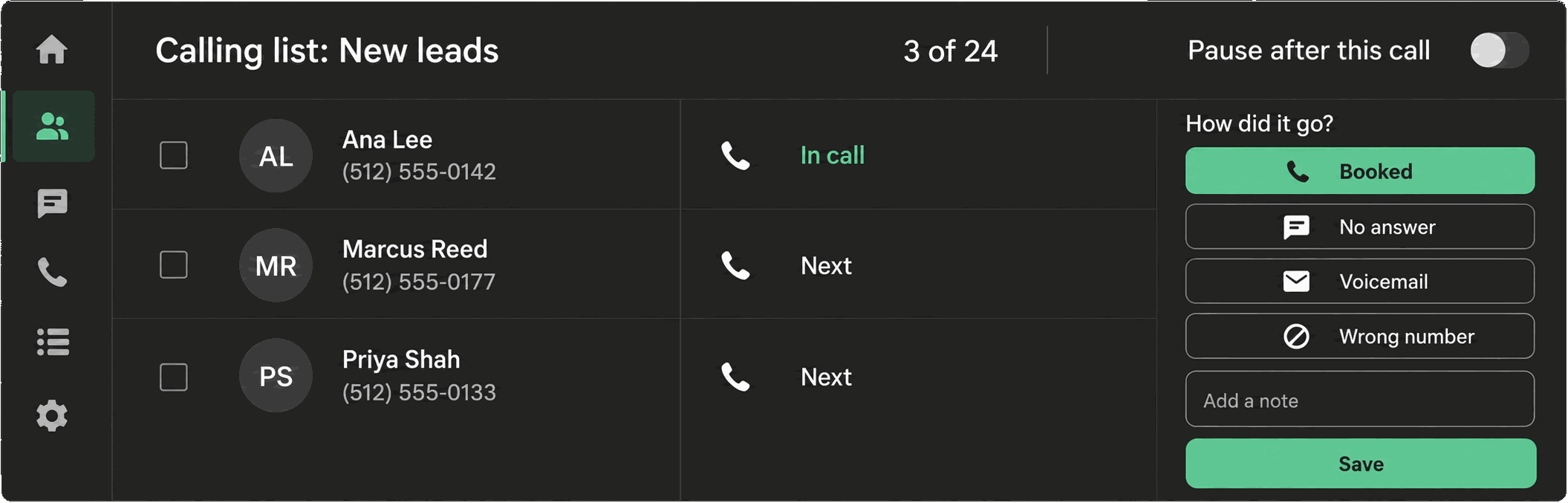
A calling list turns a spreadsheet-style outreach task into something you can actually work through without leaving HighLevel. This article covers how HighLevel calling lists work inside Phone Clover: the two ways to build one, what gets checked before each call, and what happens once a call ends.
Calling list use cases
Calling lists exist for the outreach that doesn’t fit into a single click-to-call. Think
reactivation campaigns for contacts tagged cold-lead, a batch of new signups you want called
within the hour, or working down a filtered segment from the Contacts grid one by one. Instead of
exporting a CSV and dialing manually, or opening twenty browser tabs, a calling list queues the
contacts and moves you through them with the same caller card, in-call controls, and outcome
tracking as any other call.
There are two ways to build one, and they serve slightly different workflows.
Lists from tags
From the Phone page’s Lists tab, or from the dashboard’s “Call a tag” card, type a tag
(the field’s placeholder reads Tag, e.g. new-lead) and press Start. Phone Clover looks up every
contact carrying that tag and begins building the list.
Note: Only the first 100 contacts matching the tag are loaded into the list. The response also reports the total tag count, so if your tag has more than 100 contacts, you’ll see that and can plan a second pass rather than assume the whole segment got dialed.
This is the faster path when your outreach segment already exists as a tag in your automation or pipeline setup, since there’s no manual selection step.
Lists from selected contacts
The other path starts in HighLevel’s own Contacts grid. Tick the rows you want (using GHL’s native selection UI), then click “Call N selected” in the floating widget, where the button label reflects the live count. This is the better option when your list doesn’t map cleanly to a single tag, for example a hand-picked follow-up batch after a webinar or a mixed segment built from a filtered view.
Warning: Up to 100 ticked contact IDs are sent per request, and this only reads one page of ticked rows at a time (GHL shows 20 to 100 rows per page depending on your view settings). If you’ve selected across multiple pages, only what’s visible on the current page gets sent.
Both list types resume automatically after a page reload if the list is unfinished, so a dropped connection or an accidental tab close doesn’t force you to start over.
DND and calling-hours checks
Compliance checks run twice: once when the list is built, and again at the exact moment each call dials. That second check matters, because a contact can opt out or a list can sit paused for hours between the two points.
At dial time, Phone Clover checks, in order: HighLevel’s own call-DND flag, an internal suppressions list, whether the number is still callable, whether the contact is still in the same sub-account, and US calling hours.
The calling-hours rule defaults to 8am to 9pm in the contact’s time zone. If HighLevel has no time zone on file for a contact, Phone Clover falls back to a window that’s legal across the whole contiguous US: 8am Pacific to 9pm Eastern. That fallback doesn’t cover Hawaii or Alaska, so if your contact base includes those states, don’t assume the fallback protects you there.
This toggle lives in Settings → Sequence → “Calling hours: 8am–9pm.” Turning it off removes the time check specifically; the do-not-call checks stay active regardless. See DND and calling-hours checks for the full rule set.
While a list runs, the status bar shows exactly what’s happening: “Finding the next contact…”,
“Calling <pos> of <total> · <name or number>”, “Next call in <n>…”, or a pause reason like
“Paused: N left are outside calling hours (8am to 9pm).” When the list finishes, a summary shows
how many contacts connected, hit voicemail, didn’t answer, had a wrong number, or were skipped,
with a “Call N again” button to retry the no-answers.
Logging outcomes after the call
Every call in a running list requires an outcome before the dialer moves on. That’s a deliberate difference from a standalone call, where the outcome card auto-dismisses after 20 seconds if you skip it. In a list, skipping isn’t an option, because the outcome is what feeds the “connected/ voicemail/no answer” summary at the end.
The four built-in outcomes are Connected, Voicemail, No answer, and Wrong number, each with an optional note (up to 200 characters). Admins can also define up to 8 custom outcomes from Settings → Calls → “Call outcomes,” each with a name, an optional tag applied to the contact, and an optional follow-up task due 0 to 90 days out. Picking a custom outcome creates that task assigned to whichever rep took the call and writes a note to the contact record.
See Log outcomes, tags, and tasks after a call and Set up custom outcomes for the full setup.
What this isn’t
Calling lists in Phone Clover are deliberately manual-pace. There’s no predictive dialing and no automatic voicemail detection built into this dial-list type by default. A separate, opt-in toggle in Settings → Sequence turns on Telnyx’s Premium answering-machine detection for the sequential dialer, but that carries its own Telnyx usage cost and is a different feature from the tag- and selected-contact lists described here. If your team specifically needs predictive dialing with a multi-line auto-dialer, this isn’t that tool.
A day in the life of a calling list
Say an admin tags 60 contacts reactivation-q3 after a campaign wraps up. A rep opens the Lists
tab, types the tag, and presses Start. The status bar reads “Finding the next contact…” for a
moment, then moves to “Calling 1 of 60 · Jane D.” The rep talks to Jane, hangs up, and the outcome
card appears: they pick Connected, add a short note, and the list automatically shows “Next call in
3…” before dialing contact 2.
Partway through, the rep needs to step away. They hit Pause, and the bar shows “Will pause after this call” until the current call finishes, then “Paused after 23 of 60.” They come back an hour later, hit Resume, and the list picks up exactly where it left off, skipping only the contacts that have since gone out of calling hours or triggered a fresh DND flag. At the end, a summary reads “Done: 41 connected, 9 voicemail, 6 no answer, 4 skipped,” with a “Call 6 again” button sitting right there for the no-answers, so the rep doesn’t have to rebuild a list of who to retry.
That’s the whole mechanic. Nothing about it is predictive or automatic beyond the built-in compliance checks; it’s a manual-pace tool meant to remove the busywork around dialing, not the dialing itself.
How this fits with routing and business hours
Calling lists are an outbound tool, separate from the inbound routing rules (ring-all, round robin, business hours) that decide how calls land on your team. They share the same underlying contact records and the same compliance layer, but a calling list doesn’t touch how incoming calls to your main number are distributed, and inbound routing settings don’t limit what a rep can dial from a list. If you’re setting both up for the first time, it’s worth configuring inbound routing and availability first, since that determines whether a callback from a list contact even has anywhere to ring, before spending time tuning outbound list behavior.
Tips for cleaner lists
A few habits make calling lists noticeably more reliable. Keep tags specific to the campaign, not reused across multiple outreach efforts, so “Finding the next contact” doesn’t pull in stale contacts from an older push. If you’re building a list from selected contacts, sort or filter the Contacts grid first so what you tick maps to what you actually mean to call, since only the visible page gets sent. And if a list keeps showing “Paused: N left are outside calling hours,” check whether those contacts have a time zone on file in HighLevel; a large cluster with no time zone set usually means the fallback window is doing more work than expected, and updating contact records with real time zones will make outcomes more predictable.
When Phone Clover fits, and when it doesn’t
Calling lists fit teams doing manual, one-call-at-a-time outreach where compliance checks and logged outcomes matter more than raw dial speed. They’re a good match for reactivation campaigns, new-lead follow-up, or any tag-based segment you already maintain in HighLevel.
They’re not the right tool if you need a true predictive or power dialer with multiple concurrent lines, or if AMD needs to be on by default rather than an opt-in add-on. For a broader comparison of how this stacks up against other Telnyx apps for HighLevel, see Phone Clover vs LC Phone.
See the full feature page at /product/calling-lists.