
Start a calling list from selected contacts
Tick contacts in HighLevel's own Contacts grid and dial them one after another with Phone Clover's power dialer.
For reps · Updated Sep 23, 2026
All guides
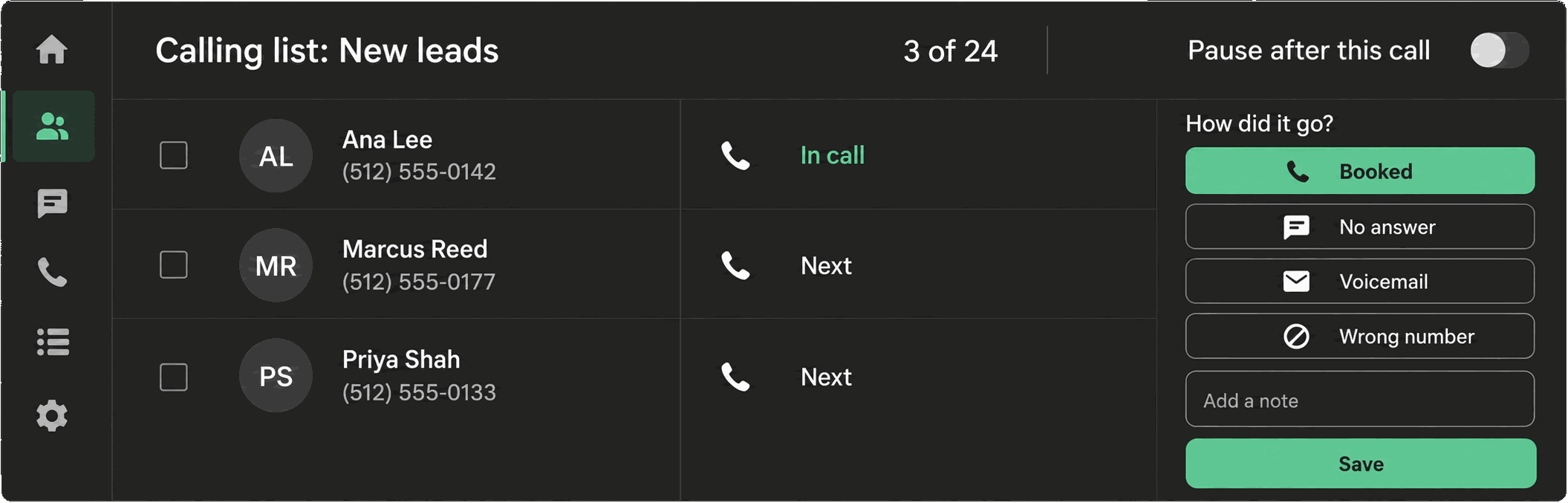
If you have already filtered the Contacts grid down to exactly who you want to call today, you do not need a tag for that. Tick the rows in HighLevel and Phone Clover will dial them in order.
Step by step
- In HighLevel, open Contacts and filter the grid however you like.
- Tick the checkbox next to each contact you want on the list, or use HighLevel’s own select-all for the page.
- Open the Phone Clover floating widget. A button reading Call N selected appears, where N is the live count of ticked contacts.
- Click it. The dialer starts working through the list automatically.
While the list runs
The dial-list bar shows exactly where the list stands, with wording like:
| State | What it means |
|---|---|
| Ready | The list has been built and is about to start |
| Finding the next contact… | Phone Clover is looking up the next contact to dial |
Calling <pos> of <total> · <name> | A call is in progress |
Next call in <n>… | The countdown before the next call, set by your seconds-between-calls setting |
| Paused | You paused the list |
| Will pause after this call | You asked to pause, and the current call is finishing first |
| Paused: N left are outside calling hours | See below |
Pause, resume, and stop controls stay visible the whole time. Pausing never cuts off a call in progress. When the list finishes, a summary shows how many contacts were connected, went to voicemail, did not answer, or turned out to be a wrong number, with a Call N again button to retry the no-answers.
What happens before each call
Every contact on the list is checked again right before Phone Clover dials, not just when you first built the list. A contact who opts out or moves outside calling hours between when you ticked them and when their turn comes up gets skipped safely instead of called. See DND and calling-hours checks.
After each call, you record an outcome before the list moves on. See Post-call outcomes.
Limits
Note: Up to 100 ticked contact IDs are sent per list. HighLevel shows 20 to 100 rows per page, and Phone Clover reads only the page you are currently on, so a selection spanning multiple pages of the grid will not all come through in one list.
- This is a manual-pace dialer. There is no predictive dialing and no answering-machine detection for this kind of list, by design. A separate, off-by-default detection feature exists only for tag-based sequential lists in Settings → Sequence, and it costs extra because it uses a paid Telnyx feature.
- If you reload the page mid-list, Phone Clover resumes the unfinished list rather than losing your place.
Troubleshooting
The “Call N selected” button never appears. Make sure at least one contact is ticked in the Contacts grid, and that the Phone Clover widget is open. The button only shows a count once something is selected.
Only some of my selected contacts made it onto the list. You most likely had contacts ticked across more than one page of the grid, or more than 100 ticked. Work through the current list, then select the remaining contacts and start a second list.
The list stopped with an error instead of finishing. The dial-list bar shows the reason next to “List stopped.” Common causes are a lost connection or a contact with an unusable phone number.