
Set up your first number
Bring an existing Telnyx number into Phone Clover, set it as your default, and choose who calls go to.
For admins · Updated Sep 23, 2026
All guides
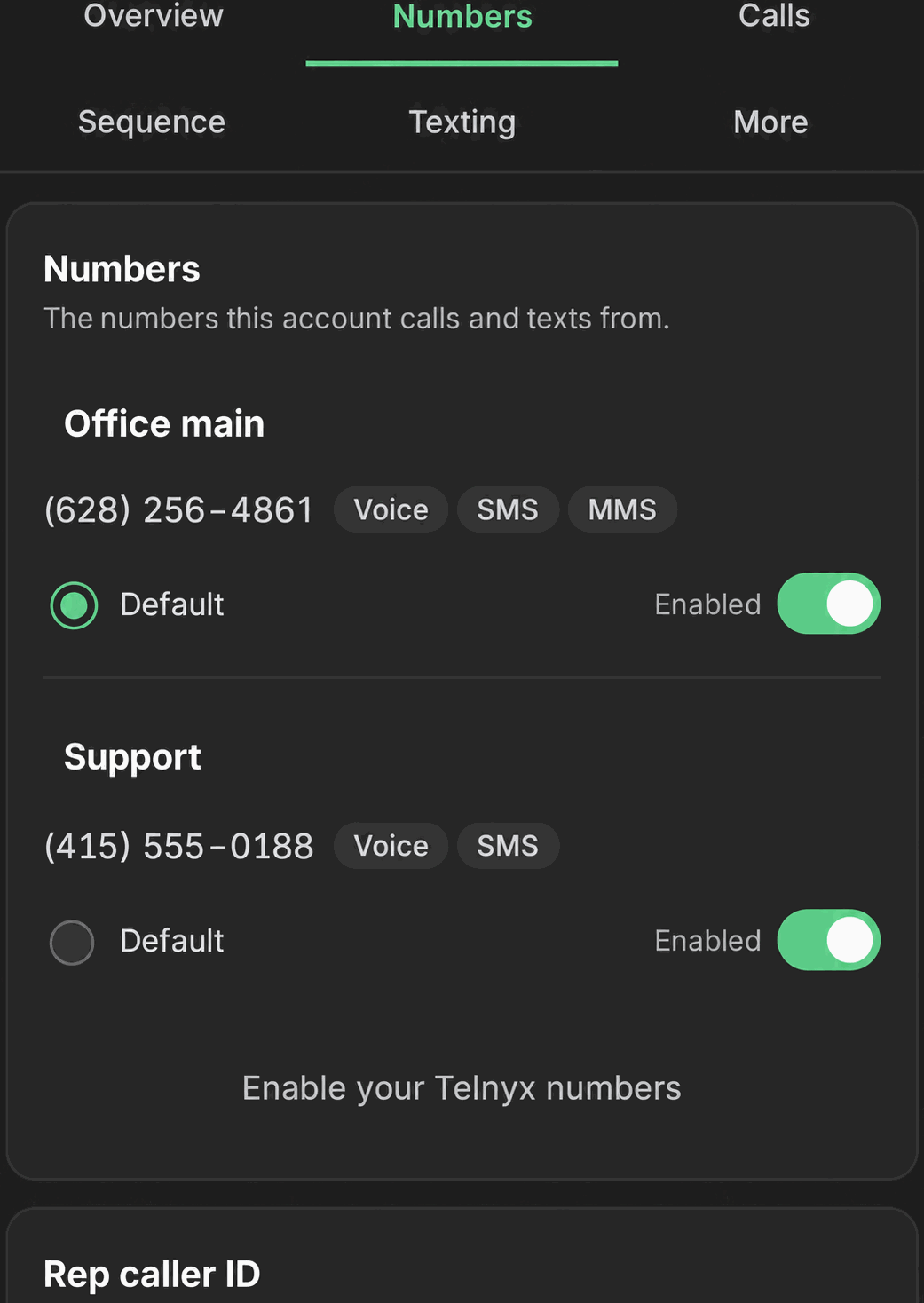
After Phone Clover is installed, the Phone page needs at least one working number before anyone can call or text. This page covers the fastest path: bringing in a number you already own in your own Telnyx account. If you do not have a Telnyx number yet, or want one in another country, see Buy an international number instead.
Before you start
- Who can do this: an admin of the HighLevel sub-account.
- What you need: a number already purchased in your own Telnyx account. Connect that account first: Connect your Telnyx account.
Step by step
- Tag the number in Telnyx. In your Telnyx portal, tag the number
ghlto make it available to any sub-account, orghl-<locationId>to reserve it for one specific HighLevel sub-account. - Open Numbers in Phone Clover. Go to Settings → Numbers, then click Enable your Telnyx numbers.
- Pick the number. Tagged numbers appear in the picker. Select the one you want.
- Confirm the move. Phone Clover asks: “Move
<number>to this account? Voice and texting for it will route here.” Click Move number to confirm.
Once confirmed, the number shows up in the Numbers card with an editable label, its full number, and capability chips for Voice, SMS and MMS.
Note: picking up a number here does not repurchase it. It stays in your Telnyx account; you are only pointing its voice and texting traffic at this HighLevel sub-account.
Setting a default number
The Numbers card lists every connected number with a Default radio button. The default number is the one that rings when someone calls your business line, and the one texts send from unless a rep or workflow picks a different one. Pick a default as soon as you have at least one number connected.
Each number also shows an Enabled switch. Turning a number off stops it from being used for new calls or texts without disconnecting it from your account.
Rep caller ID
Below the Numbers card, the Rep caller ID card lets you choose which number each rep’s outgoing calls show, with a per-user select. The default setting is Default, meaning the rep’s calls use the sub-account’s default number. Change this only if a rep needs to call out from a specific number instead.
Texting on this number
A new number is not automatically registered for business texting in the US. Two separate things need to happen before texts reliably deliver:
- A2P 10DLC registration, required for US business texting on any number. See Register for A2P 10DLC.
- Native SMS provider, if you want texts sent and received through HighLevel’s own Conversations screen to travel over this number. See Turn on Telnyx as your native SMS provider.
Warning: skipping A2P 10DLC registration is the most common reason a brand-new number’s texts get filtered by carriers. Register before you rely on the number for texting.
Adding more numbers later
You are not limited to one number. Come back to Settings → Numbers → Enable your Telnyx numbers any time to bring in another number the same way, or use Add a number to text-enable a number you already use for calls elsewhere, or buy a new one, including outside the US.
Troubleshooting
The number does not appear in the picker. Confirm the tag in Telnyx matches exactly: ghl, or
ghl-<locationId> with the correct location ID. Tag changes can take a minute to show up.
The capability chip looks backwards, showing Voice when the number is text-enabled or the other way around. This is a known display issue on some hosted numbers. The number still works correctly for calling and texting; only the chip label is affected. Contact support if you are unsure which capability a specific number actually has.
I moved the wrong number. Repeat the same steps to move the correct number, then use the Enabled switch to turn off the one you moved by mistake. Moving a number here does not delete it from Telnyx, so nothing is lost.