
In-call controls
What each button does during a live Phone Clover call, mute, hold, keypad, note, contact, text, and hang up.
For reps · Updated Sep 23, 2026
All guides
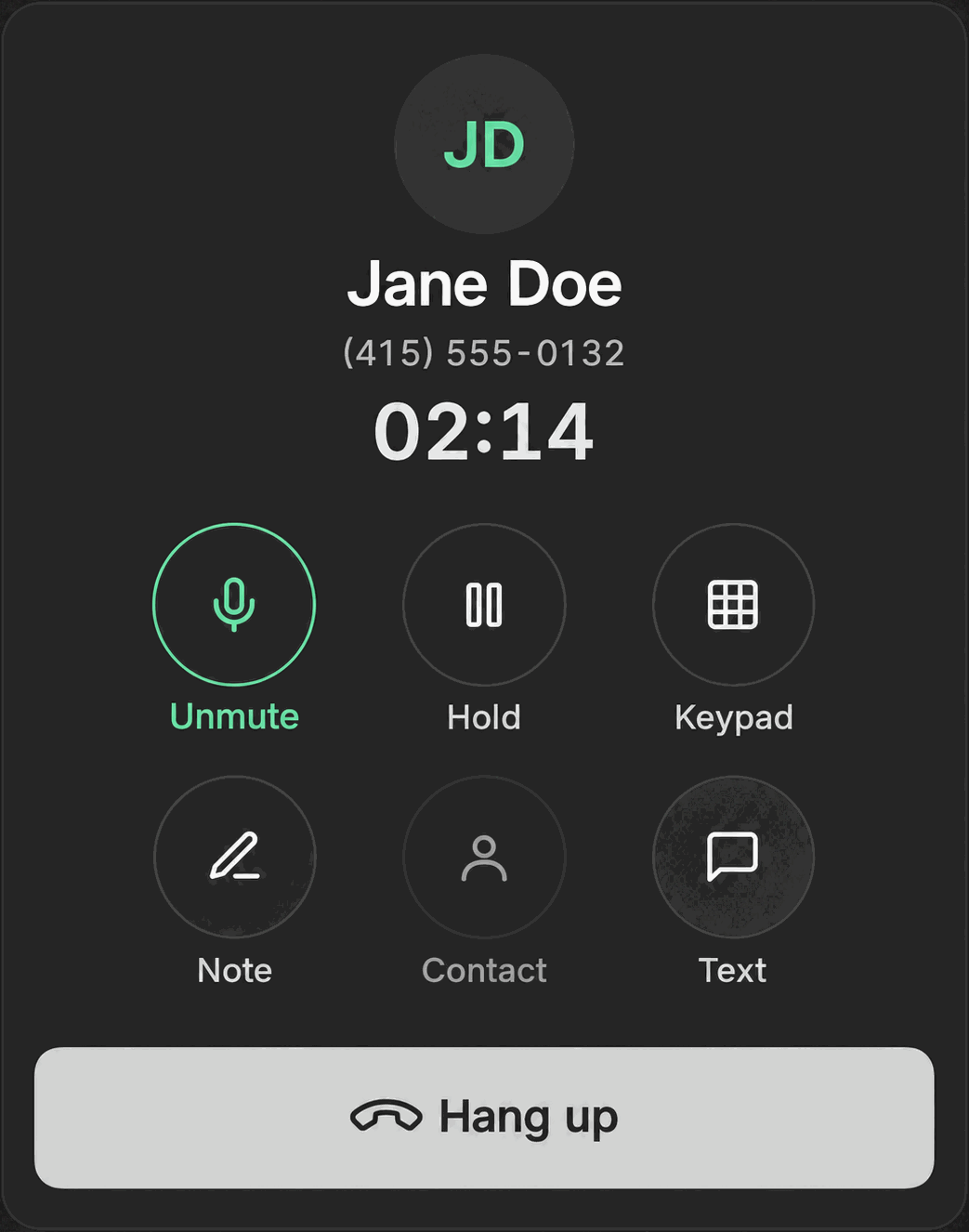
Once a call connects, Phone Clover shows the same row of controls whether you are in the floating widget or the full Phone page. Here is what each one does.
The controls
- Mute / Unmute. Stops your microphone from being heard by the other side without ending the call. Click again to unmute.
- Hold / Unhold. Puts the call on hold. The other side hears hold music or silence, depending on your setup, until you resume.
- Keypad. Opens a dial pad you can use to send DTMF tones during the call, for example to navigate an automated phone menu.
- Note. Opens a note panel so you can jot something down while the call is still happening, without waiting for the post-call outcome screen. Notes here are capped at 200 characters.
- Contact. Opens the contact’s HighLevel record in a new view, so you can check details without hanging up.
- Text. Opens a text panel to send an SMS to the person you are on the phone with, right from the call screen. Messages here are capped at 640 characters, with a Send button.
- Hang up. Ends the call. While the call is still ringing and has not been answered yet, this same button reads Decline instead.
- Answer. Shown only while a call is ringing in, to pick it up.
Notes and texts sent mid-call
A note or text you send from the in-call panel is saved to the contact the same way a note or text sent anywhere else in HighLevel would be. There is nothing special about doing it mid-call beyond convenience: you do not have to end the call first to log something.
Note: The in-call note field and the post-call outcome note field are separate. A note you write during the call does not carry over into the outcome screen’s note field automatically.
After the call
When either side hangs up, Phone Clover shows the post-call outcome screen with tiles for Connected, Voicemail, No answer, and Wrong number, plus any custom outcomes your admin has set up, and its own note field. See Post-call outcomes.
Same controls everywhere
These controls look and behave the same whether the call started from the Keypad tab, a click-to-call on Contacts or Opportunities, or the header call button in a conversation. You do not need to relearn anything based on how the call started.
Troubleshooting
I don’t see an Answer button on an incoming call. Check that your browser has microphone permission granted and that desktop notifications are not silently being blocked. See Fix microphone permission problems and No incoming call popup.
Mute doesn’t seem to be working. Confirm you clicked Mute in the Phone Clover call panel, not a mute control in your operating system or browser tab, since those are separate from Phone Clover’s own mute state.
The keypad tones aren’t going through on an automated menu. Make sure you opened the in-call Keypad, not the main dial pad on the Keypad tab. The main dial pad is for starting a new call, not sending tones during one that is already connected.