
The problem
A call that ends without any record of what happened is a call a manager can’t act on later. Did the contact answer? Did they ask for a callback? Was it the wrong number entirely? Without a consistent place to log that, teams end up relying on a rep’s memory, or on a note typed inconsistently into a contact record, if it gets typed at all.
That inconsistency is exactly what makes reporting and follow-up unreliable. A manager pulling a call log full of blank or inconsistent notes can’t tell which missed calls still need a callback, or which reps are actually converting conversations into next steps, without asking each rep directly and hoping they remember.
Post-call outcomes give every call the same, required moment to record what happened, and turn that record into a tag and a follow-up task automatically when it matters.
How it works in HighLevel
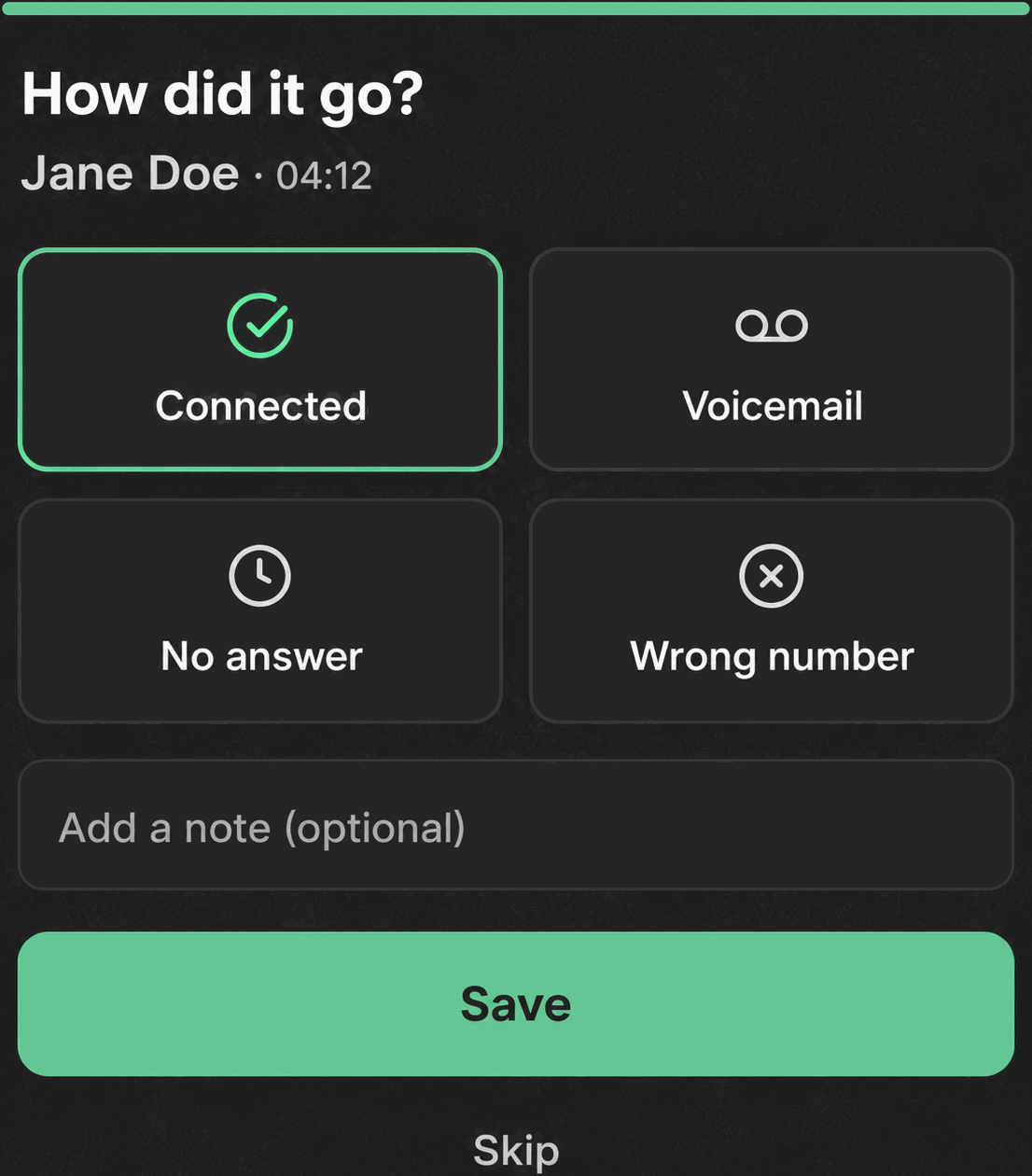
After a call ends, a card titled “How did it go?” appears with four built-in tiles: Connected, Voicemail, No answer, and Wrong number. A rep taps one, can add an optional note up to 200 characters, and saves. Outside a running calling list, the card also has a Skip button and auto-dismisses after 20 seconds if left alone. Inside a running list, picking an outcome is required before the list moves on to the next contact.
Below the four built-in tiles, any custom outcomes an admin has configured appear as additional options. Picking one writes a note reading “Outcome: <label>” to the contact, and if that custom outcome has a tag or a follow-up task attached, both are created on the contact at the same time, with the task assigned to the rep who logged the outcome.
Every option explained
| Setting | Where | What it does |
|---|---|---|
| Built-in outcomes | Outcome card, always shown | Connected, Voicemail, No answer, Wrong number |
| Note field | Outcome card | Optional note up to 200 characters, saved with the outcome |
| Custom outcomes | Settings → Calls → “Call outcomes” card | Up to 8 admin-defined outcomes, each with a name (40 chars max) |
| Outcome tag | Custom outcome editor | Optional tag (40 chars max) applied to the contact when the outcome is picked |
| Follow-up task | Custom outcome editor | Optional task due No task, or Task: today, 1 day, 2 days, 3 days, 1 week, 2 weeks or 30 days (server allows 0–90 days generally) |
Warning: Saving an outcome twice on the same call creates a second follow-up task. Teach reps to save an outcome only once per call.
What runs on Telnyx
Outcomes themselves are a GHL-side record, a note, a tag and a task written to the contact, so Telnyx isn’t directly involved in this feature. What Telnyx does provide is the call event that triggers the outcome card to appear, and, when recording is on, the audio Phone Clover can attach alongside the outcome in the dashboard’s expanded call row.
Who uses it
Every rep sees the outcome card after their own calls, whether that call came from the softphone, click-to-call, or a running calling list. Admins are the ones who define custom outcomes from Settings → Calls, deciding what tags and follow-up tasks the team should be prompted to apply, and they see the resulting notes and tasks on the contact the same way any GHL user would.
What to expect
Outside a calling list, logging an outcome is a courtesy prompt, not a hard requirement, the card auto-dismisses after 20 seconds if ignored. Inside a list, it’s mandatory, by design, so a manager can trust that every dialed contact in a completed list has a recorded outcome. Custom outcomes are capped at eight, and a deleted custom outcome’s label stays on old calls rather than disappearing retroactively. There’s no way to trigger a booking link from an outcome today, and saving the same outcome twice will create a duplicate follow-up task, so it’s worth telling reps to save once and move on.
Design custom outcomes around what the team actually needs to act on, rather than trying to capture every possible nuance of a call. With only eight slots available, the most useful set is usually a short list that maps cleanly to a next step, like a specific follow-up task or a tag a workflow can act on, rather than eight overlapping variations of “interested.”